Why a responsive site still has mobile usability issues
“Responsive” describes what the layout does: columns stack, images shrink, the menu folds into an icon. “Usable” describes what a person can get done. A page can manage the first and fail the second, because reflowing a desktop page in order turns everything you took in at a glance into a long vertical queue. The photo that filled half a laptop screen now fills the whole first phone screen, and the button that sat beside it ends up underneath.
Desktop-first sign-off is how this gets through. The client approves on a large monitor, and someone “checks mobile” by dragging the browser narrow or glancing at a phone held by a colleague who already knows where the button is. Nobody tries to book with one thumb on a bus. The bar this post uses: a page is usable on mobile when a first-time visitor can finish its main task on a phone without hunting, zooming or guessing.
Older advice tells you to clear whatever Google’s Mobile Usability report flagged, but Google retired that Search Console report, along with the Mobile-Friendly Test, in December 2023, and both only ever checked a narrow set of layout faults such as tiny text and links packed too close together.
Everything below is visible usability: what’s on the screen, where it sits and what happens when you tap it. Speed is a separate question that needs real-user data, and a screenshot can’t answer it. If the homepage’s opening message is the problem rather than its layout, that belongs in what a homepage audit should tell you.
Booking: the main action sits below the first phone screen
Start here, because this one sits directly on the path to a booking. On desktop, the headline, supporting line and button are visible together. On a phone they stack under the logo, the menu and a tall photo, so the visitor who arrived ready to book has to scroll through an introduction to find out how.
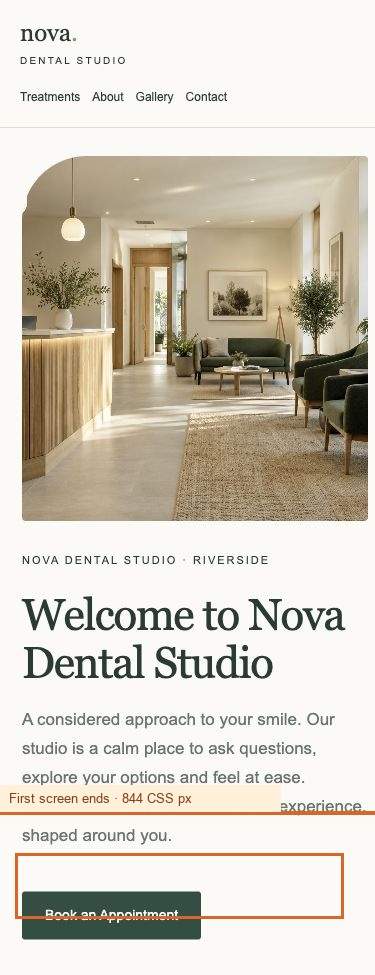
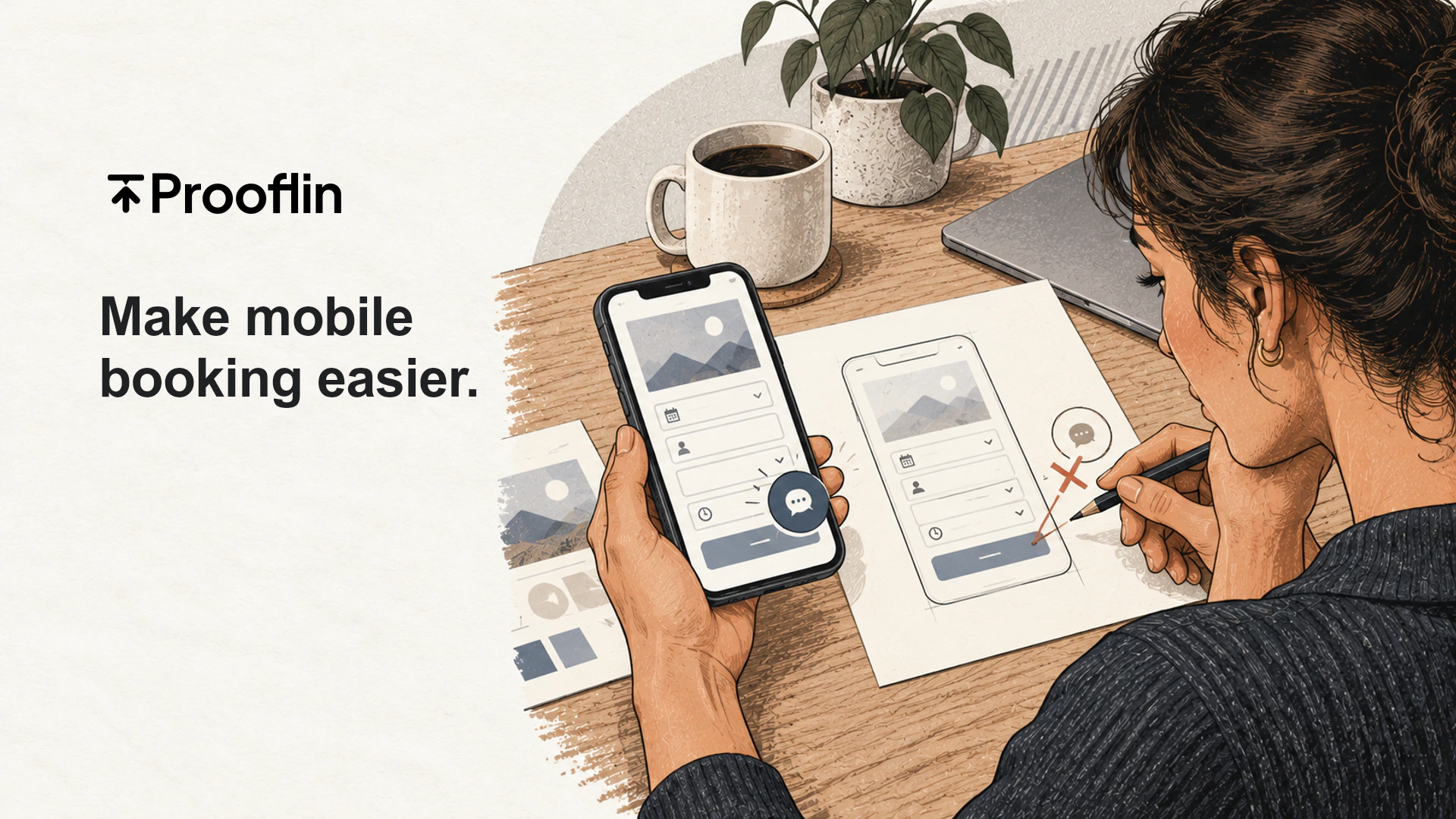
The dental sample shows the pattern. At a 390 × 844 viewport the header’s desktop booking link is hidden, and the first visible “Book an Appointment” link starts just past the end of the first screen, after the clinic photo and the welcome copy. The route exists. It just isn’t where a ready visitor’s thumb is. Note the report’s restraint, too: it calls this a directly observed placement issue whose effect on conversion hasn’t been measured.
Why does a call to action below the fold on mobile matter when people can scroll? Because the visitors most ready to book (returning patients, referrals, people who searched the clinic’s name) tend to be the least willing to read first.
What done looks like: a clearly labelled booking action on the first phone screen, either as a compact header button or straight after the opening line, without covering the headline. Point it at the real destination. If staff confirm requests by hand, call it “Request an appointment” rather than promising an instant booking.
Calling: a phone number you can read but can’t tap
For a dentist, plumber or physio clinic, a call is often the best lead there is. On a phone, a number that ignores a tap means long-press, copy, open the dialer, paste. Some people will bother. Others go back to the search results, where the next clinic has a call button. The usual failures:
- The number is plain text with no tap-to-call link.
- It’s baked into a banner image, so it can’t be tapped or even selected.
- It only appears in the footer, many screens down.
- It dials head office instead of the location the visitor is reading about.
Done means every displayed number is a working tap-to-call link, it’s reachable from the header or first screen wherever calling is the main task, and it’s the right number for that page. Put opening hours beside it so an evening tap doesn’t end in voicemail.
Tap targets sized for a mouse
Links built for a mouse pointer get cramped on a phone: stacked footer links, tiny close icons, menu items with no padding, a phone link jammed against an email link. The two big phone platforms’ own design guidelines set minimum touch targets of roughly 44 to 48 points square, with space between neighbors. The real test is simpler. Can someone walking, phone in one hand, hit the right thing first time?
Finishing a form on a phone
Forms are where mobile UX problems pile up, because each irritation repeats per field. A frequent one comes from a choice that looks tidy in a mockup: field names written as placeholder text inside the boxes, with no label above.
Enquiry fields rely on disappearing placeholder text
Observed
The contact form has four fields: name, email, phone and message. Each has a placeholder but no visible label, associated label element or explicit accessible-name attribute. Once text is entered, the placeholder no longer supplies a persistent prompt.
Why it matters
Visitors have less context when checking or correcting their answers. Persistent, associated labels improve clarity, including for people using assistive technology. This bounded field-level finding is not a full accessibility audit.
Once someone starts typing, the hint vanishes. With the keyboard covering half the screen, the visitor is left with four boxes of their own words and nothing saying which is which. The fix is cheap: labels that stay put, tied to their fields. Other common snags:
- A phone field that opens the letter keyboard, or an email field without the @ key.
- Field text smaller than 16px, which makes Safari on an iPhone zoom in on focus and leaves the visitor pinching back out to find Send.
- A first appointment request that asks for a home address, date of birth and “how did you hear about us”.
- Error messages shown at the top of the form, out of view, after the visitor taps Send at the bottom.
Done means someone can complete the form one-handed, always see what each field is for, get the right keyboard, and know afterwards that it was sent.
Overlays, small text and other things in the way
On a wide screen, overlays sit politely in a corner. On a phone, the corner is where the content is. A sticky “Call now” bar, a cookie banner and a chat bubble can all be pinned to the bottom at once, hiding the send button, the last line of the page or each other. Pinning is what makes it bad: two fixed elements overlap for as long as both are showing, and at the end of a page there’s nothing left to scroll past them. Flidu’s guide to floating chat bubbles that cover buttons and cookie banners on phones makes a fair point about the worst case: a launcher parked on a consent button looks like a trick even when it’s an accident.
Sticky booking bars are often the fix for a buried button, and they work when they’re short and clearly labelled. They backfire when they stack on top of the cookie banner, so a first visit opens on two bars, a bubble and a sliver of headline. Done means the consent banner can be answered without anything covering its buttons, and after that, no fixed element covers a primary action, a form control or the end of the page.
Reading and finding your way around
Small, dense text. Desktop-comfortable copy gets cramped in cards, footers and price tables. If people have to zoom to read a price, they won’t read the conditions under it.
Sideways scrolling. One wide table, map or fixed-width image can make the whole page wobble sideways. The dental sample records this as a passed check (no horizontal overflow at the 390px capture) and says plainly that a single viewport isn’t a general mobile-compliance claim.
No sign of where you are. The same sample flags “Navigation does not indicate the current page” but rates it P4, low severity, because each page heading still names the destination. That’s useful calibration: real, worth a later pass, nowhere near as urgent as the booking button.
See it the way phone visitors do
These problems stay invisible from a desk because whoever reviews the site already knows it. What helps is a review that puts the phone view on the table as evidence, page by page, beside the desktop view.
That’s how the UI/UX area of a Prooflin Website Audit works. It reviews desktop and 390px phone-width captures of each page you include and cites them in its findings, so a note about a hidden button points to the capture that shows it. In the Nova Dental sample, evidence E01 pairs the homepage at both widths with the end of the first mobile screen marked, and each finding carries a priority and a completion check. If you build sites for clients, the review workflow for web designers and developers shows where this fits before or after handoff.
Rank mobile usability issues by the task they block
Treat every item as equally urgent and the team spends a week on font sizes while the booking button stays buried. Judge each issue by the task it blocks and how many visitors reach that point.
Urgency also depends on the page. A buried button on an old blog post is minor; on the page your ads land on, it isn’t. And a page review shows what’s in the way, not how many bookings it cost. For that, start with your analytics and work out whether the traffic or the page is the problem.
What to do this week
- Name the one task each key page exists for: book, call or send an enquiry.
- Ask someone who didn’t build the site to do that task on their own phone, with no hints, and note where they hesitate.
- Settle the destinations first: which number takes calls, whether bookings are instant or requests, and who answers the form.
- Brief your designer with outcomes they can tick off, such as “booking action visible without scrolling at 390px and 320px wide, without covering the headline”.
- If the findings go to a client, order them by task. Presenting a website audit so the meeting ends in decisions covers that part.